Filters and Search
Filter Panel
Section titled “Filter Panel”At the top of the expense list is the filter panel, which allows you to quickly find the records you need.
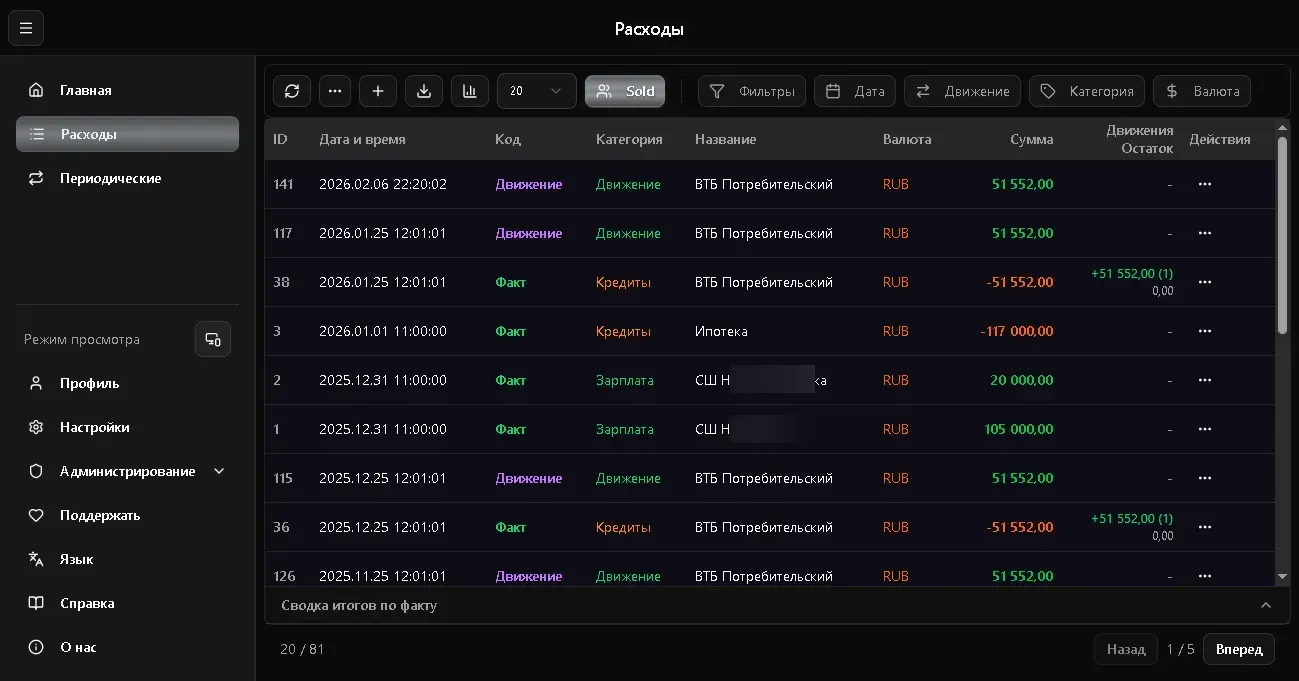
Available Filters
Section titled “Available Filters”| Filter | Description | Multiple Selection |
|---|---|---|
| Currency | RUB, USD, EUR, etc. | Yes |
| Type | Fact, Plan, Transfer | Yes |
| Category | Any categories | Yes |
| Period | Date range (from - to) | - |
How to Use
Section titled “How to Use”- Click on the desired filter
- Select one or more values
- The list updates automatically
Filters can be combined - for example, show only Fact expenses in rubles for the last month in the Food category.
Resetting Filters
Section titled “Resetting Filters”To reset all filters, click the Reset button (X icon) on the filter panel.
Sorting
Section titled “Sorting”In desktop mode, the table can be sorted by columns:
- Date - ascending or descending
- Amount - highest to lowest or vice versa
- Name - alphabetically
- Category - alphabetically
Click a column header to sort. Click again to reverse direction.
Totals
Section titled “Totals”Below the filters is the Total block - sum by each currency considering active filters. This is convenient for quickly assessing total expenses for a period.
Pagination
Section titled “Pagination”When there are many records, they are split into pages. At the bottom of the list:
- Page switcher - navigation between pages
- Items per page - choose 20, 50, or 100 records per page
Column Visibility
Section titled “Column Visibility”In desktop mode, you can configure which columns to show in the table. Click the column settings icon on the filter panel.