Navigation
App Structure
Section titled “App Structure”The app consists of several main sections. Navigation differs depending on the device.
Desktop — Sidebar Menu
Section titled “Desktop — Sidebar Menu”The menu is always visible on the left. It can be collapsed/expanded with the hamburger button in the header.
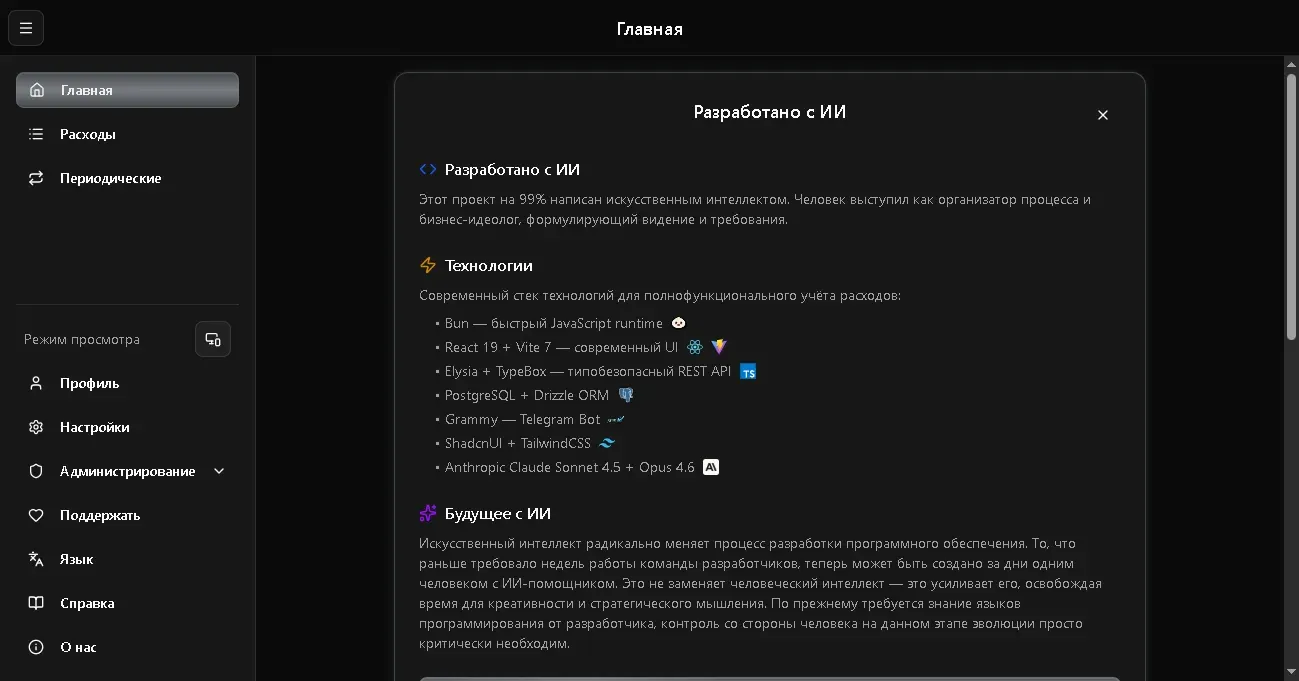
Main sections:
| Section | Description |
|---|---|
| Home | Welcome screen and general info |
| Expenses | List of all records, filters, charts |
| Recurring | Automatic recurring payments |
Settings and profile:
| Section | Description |
|---|---|
| Display Mode | Switch: auto / mobile / desktop |
| Profile | Your data and family budget |
| Settings | Language, theme, font scale |
| Subscription | Plan management and payment |
| Language | Quick switch Russian/English |
| Help | This documentation |
| About | Version, contacts, QR codes |
Mobile — Bottom Tab Bar
Section titled “Mobile — Bottom Tab Bar”On mobile devices, navigation is located at the bottom of the screen:
| Tab | Description |
|---|---|
| Home | Profile and summary |
| Expenses | Records list |
| + (center button) | Quick add record |
| Reports | Analytics and charts |
| More | All other sections |
The “More” tab opens a bottom sheet with all remaining sections: Recurring, Profile, Settings, Donation, Help, About. The display mode toggle is also located there.
App Header
Section titled “App Header”At the top of the screen is the header with:
- Page title — name of the current section
- Subscription indicator — warning if subscription has expired
- Menu button (desktop only) — collapses/expands the sidebar
Display Modes
Section titled “Display Modes”The app automatically adapts to your screen size, but you can switch the mode manually:
- Auto - the app determines the optimal view
- Mobile - compact view with cards
- Desktop - table view with extended features
The switch is located in the sidebar under “Display Mode”.
Smart Menu Sorting
Section titled “Smart Menu Sorting”For users with an active subscription or administrators, menu items are automatically sorted by usage frequency:
- Main menu (Home, Finances, Recurring, Reports) — most frequently used sections rise to the top
- Reports submenu — reports within the Reports section are also sorted by frequency
Sorting works as follows: first by click count (more clicks → higher position), then alphabetically for equal counts. Data is stored on your device — switching browsers resets the counters.
Read-Only Mode
Section titled “Read-Only Mode”If your subscription has expired, the app switches to read-only mode:
- You can view all your data
- Creating and editing records is unavailable
- A banner will appear at the top suggesting to renew your subscription
More about subscriptions: Subscriptions & Plans.