Receipt Scanner
QR Code on Receipt
Section titled “QR Code on Receipt”Russian cash register receipts contain a QR code with purchase information. iAmRich can read it and automatically fill in the expense form.
Camera Scanning
Section titled “Camera Scanning”- Open the expense creation form (+)
- Click the camera icon (receipt scanner)
- Allow camera access (on first use)
- Point the camera at the receipt QR code
- On successful scan:
- The dialog will close
- Form fields will be filled automatically
What Gets Filled Automatically
Section titled “What Gets Filled Automatically”- Amount - receipt total
- Name - store name
- Date and time - from the receipt
- Notes - purchase details (items)
PDF Receipt Upload
Section titled “PDF Receipt Upload”If you have an electronic receipt in PDF format:
- Open the expense creation form (+)
- Click the PDF upload icon
- Select the PDF file
- AI will analyze the content and fill in the fields
Auto-categorization
Section titled “Auto-categorization”The app remembers your preferences:
- If you shop at a specific store and choose the “Food” category, next time when scanning a receipt from that store, the category will be set automatically
- Categorization rules work by store name and tax ID (TIN)
- You can manage categorization rules in the settings
Duplicate Protection
Section titled “Duplicate Protection”If you scan the same receipt again, the app will warn you:
“This receipt has already been added”
You can choose:
- Cancel - don’t create a duplicate
- Save anyway - save despite the duplicate
Scanning Modes
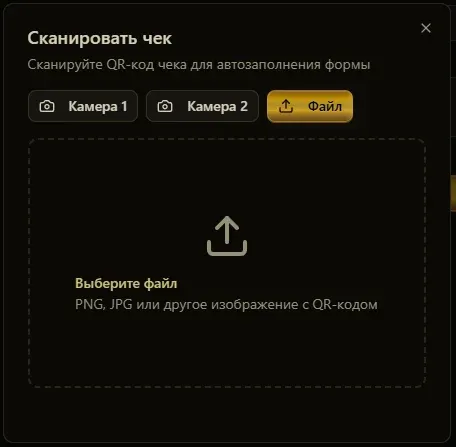
Section titled “Scanning Modes”If one camera mode doesn’t work on your device, try switching:
- Mode 1 - primary (html5-qrcode)
- Mode 2 - alternative (zxing)
- File upload - select a QR code photo from gallery
Requirements
Section titled “Requirements”- Camera on your device (for scanning)
- Active subscription (for AI-powered PDF processing)